Start with the job the images need to do
A strong photograph is not always the right photograph. Before opening the contact sheet, write down where the images will appear and what they need to communicate. A portrait for a team page may need a welcoming expression and room for a headline; an image for a project case study may need to show a process clearly. These requirements give you something more useful than a vague search for the “best” frame.
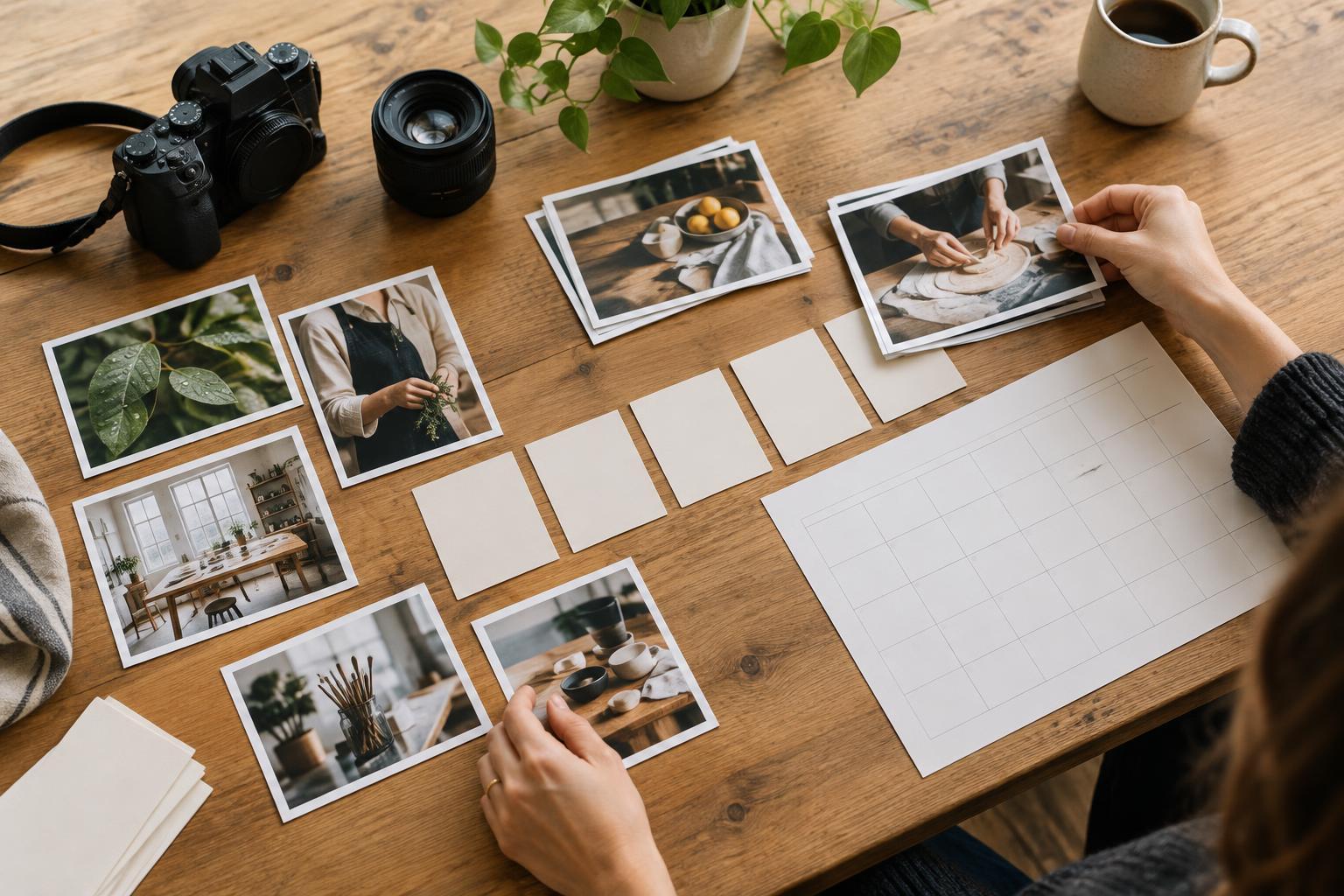
Create a contact sheet that shows every frame at a consistent thumbnail size, with filenames or frame numbers visible. Group images by scene, subject or setup if the shoot covers several ideas. At this stage, keep the processing consistent: a heavily edited thumbnail can attract attention for reasons unrelated to the photograph itself. The sheet should help you compare choices, not disguise them.
Make a quick first pass
Scan the sheet once without trying to pick winners. Mark frames that are clearly unusable because of missed focus, accidental obstruction, an unhelpful expression or a composition that cannot serve the brief. Check important details at a larger size before rejecting an otherwise promising image; a thumbnail cannot reliably show whether the eyes are sharp or a small object is distracting.
Keep this pass generous. If two photographs look similar, leave both in for now rather than making a rushed choice. Your aim is to reduce noise so that the next comparison feels manageable. A simple marking system can help: one mark for possible selections and another for frames that need a closer look. Consistent labels are more useful than elaborate ratings you may not remember later.
Compare near-duplicates side by side
The contact sheet is most valuable when several frames appear almost identical. Look across each run and ask what changes between shots. A small shift in gaze may make a portrait feel more direct. A hand moving away from a product may reveal its shape. A wider frame may give a designer useful space for text, while a tighter one may carry more energy on its own.
Choose a provisional favourite from each run, then inspect the contenders at a larger size. Compare focus, gesture, background distractions and the relationships between elements in the frame. Resist keeping five versions simply because each has a slightly different strength. If an image has a specific alternative use, note that use; otherwise, let the clearest version represent the group.
Build a shortlist that works as a set
Once the strongest individual frames are marked, view them together in a new contact sheet. This changes the question from “Does this image work?” to “What does this group communicate?” A useful set often needs variety in distance, orientation and subject matter. For example, a workshop story might combine a wide view of the room, a close view of materials and a photograph of people actively discussing the work.
Look for repetition and gaps. Three similar portraits may add less than one portrait paired with an image that shows context. Check whether the sequence makes sense to someone who was not at the shoot, and whether any essential step or detail is missing. If the set will be used in a layout, test likely crops before finalising it. A compelling image can become less useful when the required format cuts out its subject.
Make the final choice easy to explain
Give each selected image a short reason for being there: it introduces the subject, shows a key action, provides a quiet background for copy or adds a distinct detail. This turns a subjective selection into a conversation about purpose. If you are reviewing with a client or teammate, show a focused shortlist rather than the entire shoot, and invite feedback against the original brief.
Keep the marked contact sheet and record the filenames of the final images. If an editor later needs a different crop or a quieter expression, you can return to the nearby alternatives without restarting the search. The goal is not to prove that one frame is perfect. It is to make a considered choice that remains useful when the images leave your editing screen and enter the project.